How Do I Change the Order of the Side Navigation?
Most of our pages have a side navigation menu that lets people browse related content. We often call it the "side navigation menu", though on mobile devices the menu appears at the bottom of the page. It is up to the Cascade editors in our departments to organize these menus, and make sure the updates get published so the public can browse our site. This section will demonstrate that process.
Firstly, you won't be able to edit the nav menu directly; it is automatically generated to ensure consistency. The side navigation is generated based on the folder structure in Cascade. To reorder the menu, you'll need to edit the the pages and folders themselves, and the changes will be shown on the menu the next time you open a page. In other words, when you create, delete, move, or rename a folder or page in Cascade, you are editing the website's navigation.
A couple more pointers:
- Excludes things with indexing turned off, or with "display on side nav" turned off.
- Will not show up on pages with indexing turned off, or with "include side navigation" turned off.
How to update:
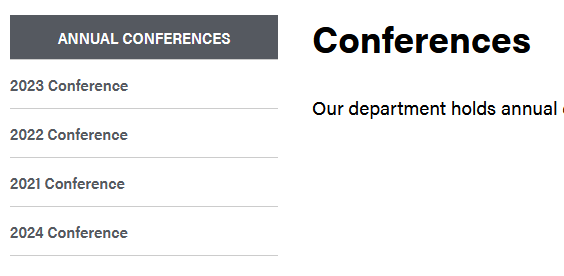
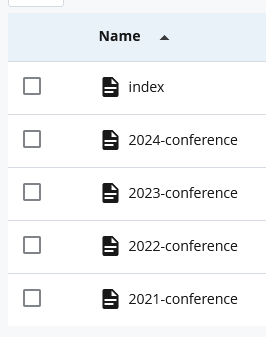
For example, let's say we have a folder for annual conferences. There's a landing page, and four other pages, one for the last four years. It looks quite normal, except you'll notice one problem, which is that 2024 is at the bottom of the menu, under 2021. We want to reorder the menu so that the most recent conference's page is at the top.
- Open the folder containing these pages.
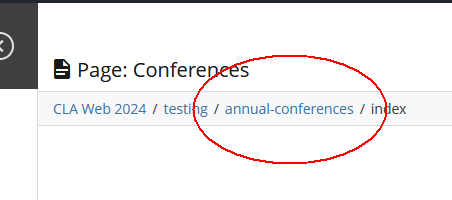
- In the upper-left, you'll see the folder structure. In other words, the exact location of the page you have open.
- You can click these to open the folder itself.
- In this case, the page we have open is the landing page, so its file name is "index", and the folder it's in is "annual-conferences", which is what you can click to open.
- Sort by "Order".
- With the folder opened, the pages inside are sorted alphabetically by default. That's just for your convenience as an editor. But if you're updating the menu, you want a different sort order.
- Click the "Order" column title, and the items will be sorted using a custom number, instead of alphabetical.
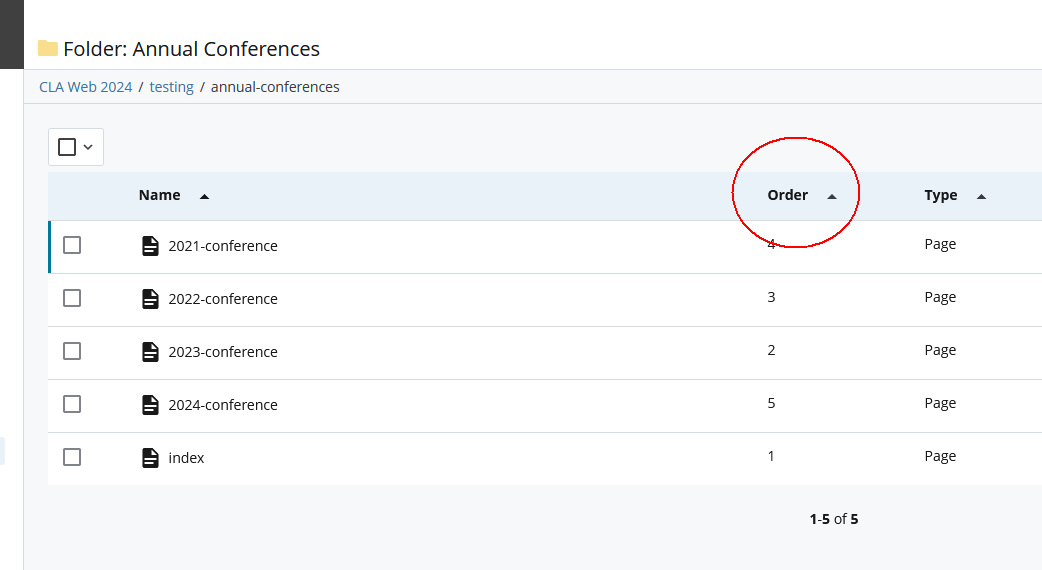
- You'll see this sorting is the same as the side nav menu. The 2024 page is at the bottom (bad).
- Drag and drop items to reorder them.
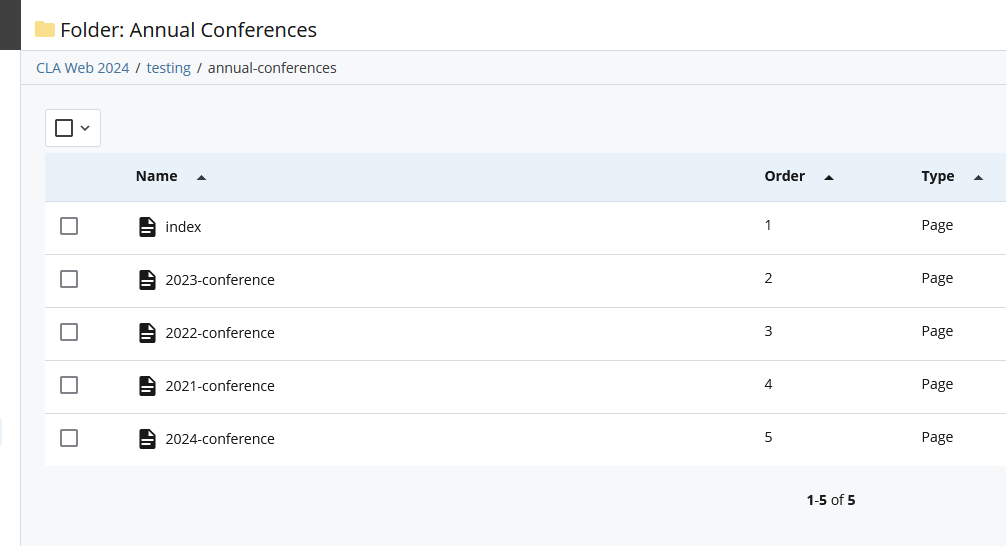
- Simply drag-and-drop the pages to reorder them.
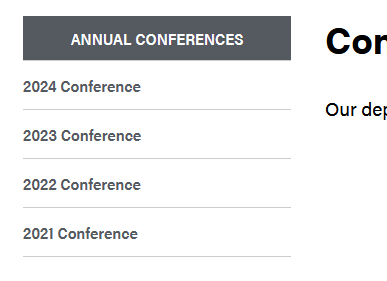
- I've moved the 2024 conference page to the top, which is where I, the editor, want it to be.
- Double check the side nav menu.
- When I re-open a page, I'll see that the menu is correct!
- Publish the update.
- This is the final, and CRITICAL, step!
- Each page in this folder will show the same side navigation menu. This is for consistency for users browsing our website.
- When you update the menu on one page, you're updating it for every other page in this folder as well.
- Because each page now has an update, they will all need to be republished.
- You can open each one individually and click the publish button, but the preferred method is to open the folder (again) and publish it. That will ensure every single page in the folder gets published.
- However when you publish an entire folder, it is best to schedule the publish for 5 PM. Publishing an entire folder during the middle of the day may slow the system down for everyone.
- Final final step! It would be a good idea to check the live site the next morning, just to double check that everything is correct!
Some final pointers:
- The process is the same when you add, delete, move, or rename something, since those changes will be reflected on the navigation menu, you'll need to republish, same as if you were reordering.